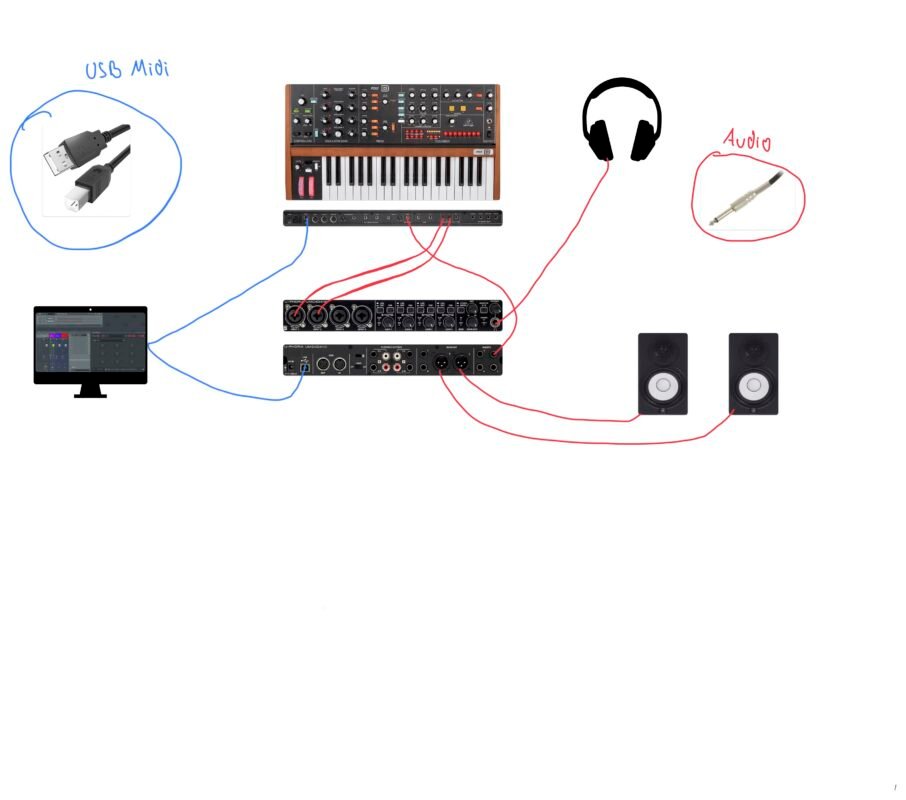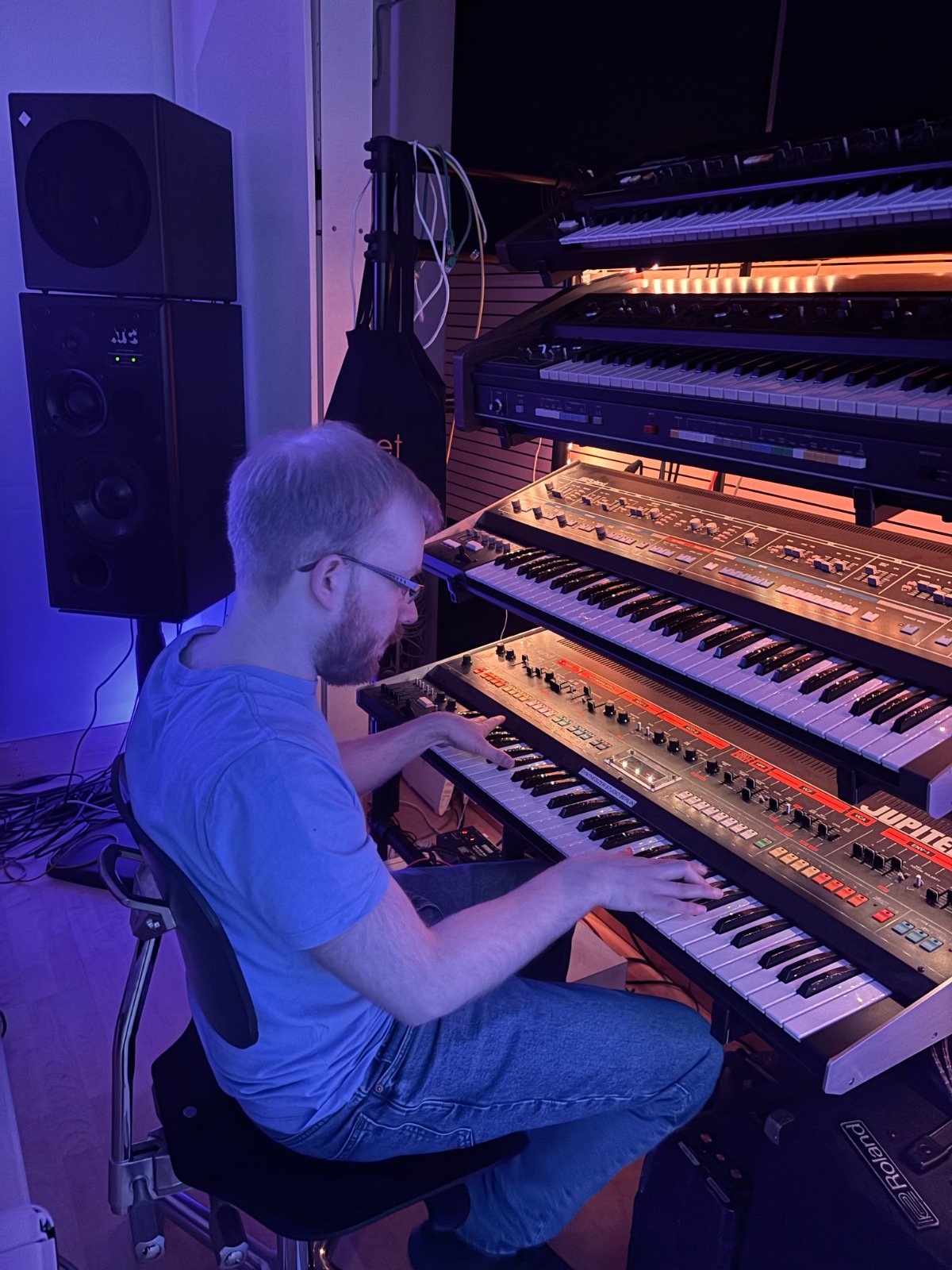
The Behringer Poly D is a powerful analog synthesizer, and when paired with a DAW like FL Studio or Ableton Live, it becomes even more versatile. Whether you want to sync its sequencer and arpeggiator, use it as a MIDI keyboard, or process external audio through its analog circuitry, connecting the Poly D to your DAW opens up a world of creative possibilities.
In this guide, we’ll cover both audio and MIDI integration, step by step.
Choosing Your MIDI Connection
The Poly D offers two types of MIDI connectivity:
- Traditional 5-pin DIN MIDI
- MIDI over USB
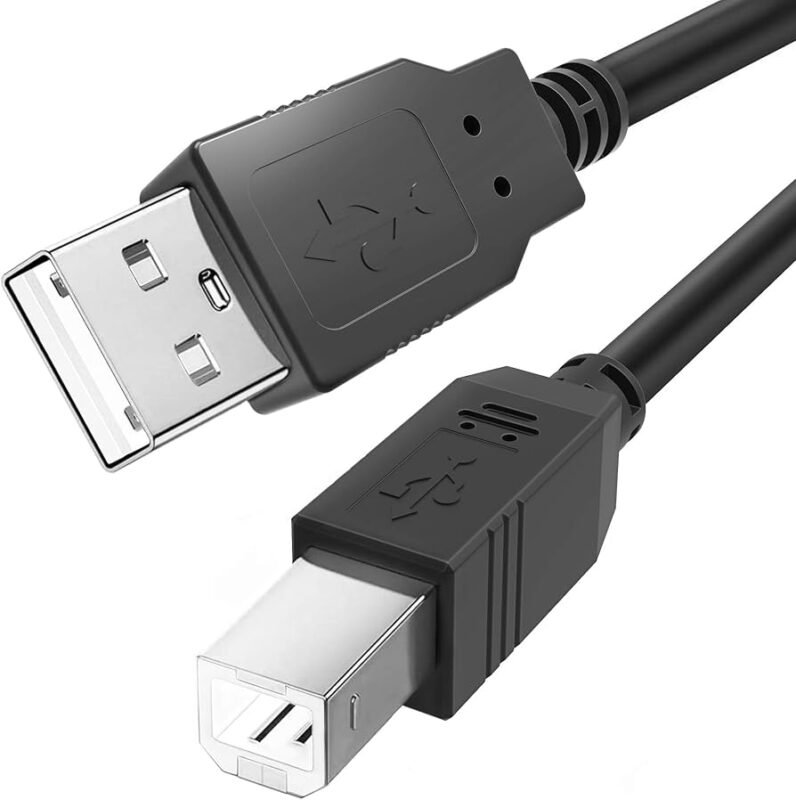
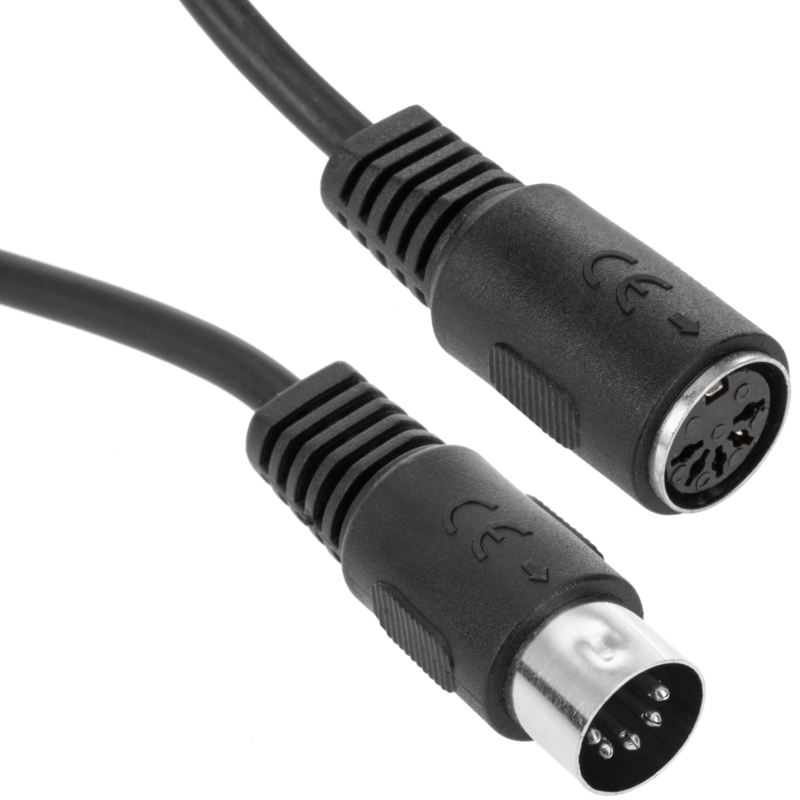
We recommend using MIDI over USB because it supports two-way communication. This allows your DAW to send MIDI notes to the Poly D and lets the Poly D send MIDI notes, pitch bend, and other messages back into your DAW.
Setting Up Audio Connections
To record or process audio from the Poly D in your DAW:
- Connect the main stereo outputs on the back of the Poly D to an audio interface.
- Connect the audio interface to your computer.
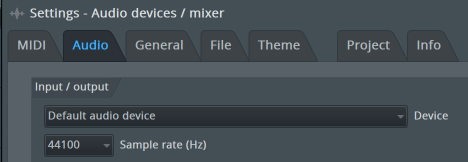
- In your DAW, select your audio interface in the global audio settings.
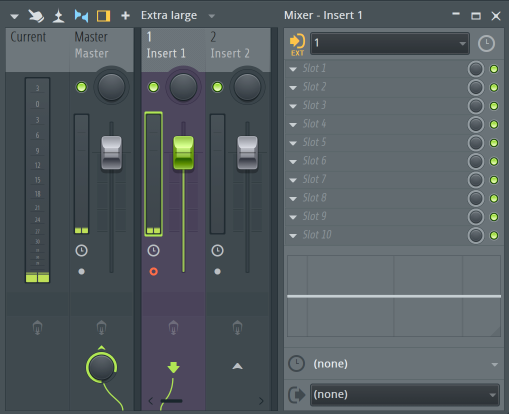
- Create an empty mixer channel, then select the corresponding inputs from your interface where the Poly D is connected.
Select an empty mixer channel and select the audio interface inputs in the top right corner.
Recommended Recording Settings
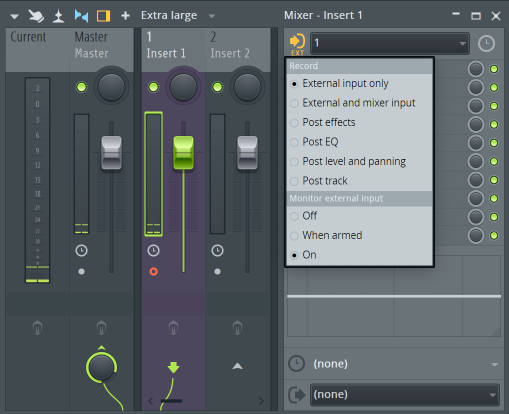
Most DAWs allow you to choose how audio is recorded along the signal chain:
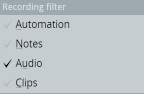
- Set the recording filter to External Input Only. This ensures that you record the dry signal from the Poly D, ignoring any DAW effects applied in the mixer. This is crucial for a non-destructive workflow.
- Enable monitoring if you want to hear the Poly D in real-time, even when the track isn’t armed for recording.
Once set up:
- Arm the mixer channel for recording
- Enable global recording
- Press play to start recording
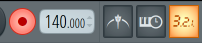
You can also use a pre-count feature to give yourself a head start before recording begins.

Using the Poly D as a MIDI Keyboard
To trigger instruments in your DAW with the Poly D:
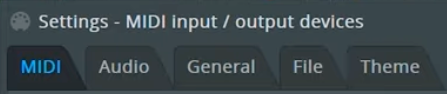
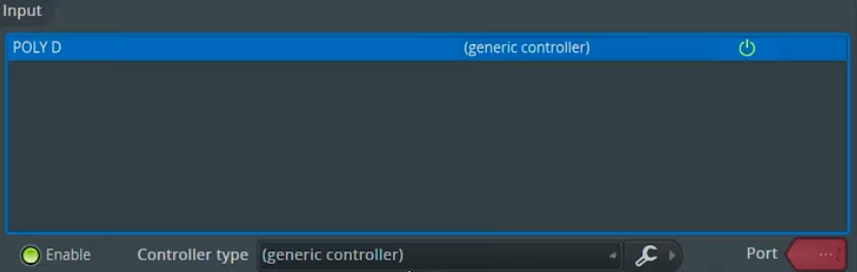
- Open your DAW’s global MIDI settings.
- Enable the Poly D as a MIDI input device.
Now, playing the Poly D will send MIDI notes to your DAW. Note that only MIDI note and pitch bend messages are sent — you won’t be able to control DAW parameters directly from the Poly D.
Sending MIDI from the DAW to the Poly D
To use your DAW’s sequencer to play the Poly D:
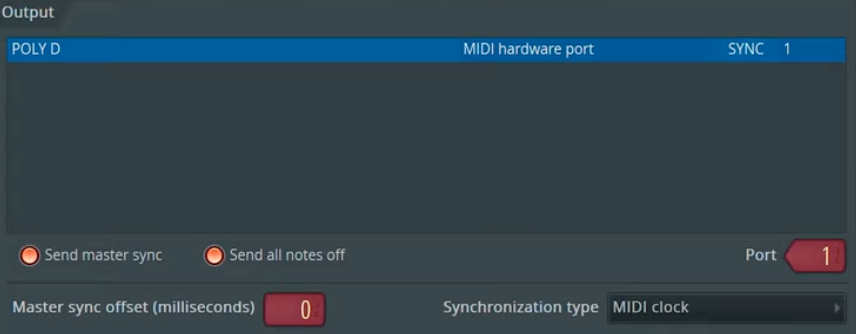
- Go to your DAW’s MIDI output settings.
- Enable Send Master Sync so tempo information is transmitted from your DAW to the Poly D sequencer.
- Assign a MIDI port for the Poly D. Each synthesizer in a multi-synth setup must have a unique port to avoid triggering multiple instruments simultaneously.
4. Add MIDI Out stock plugin in your DAW and set it to the same MIDI port.
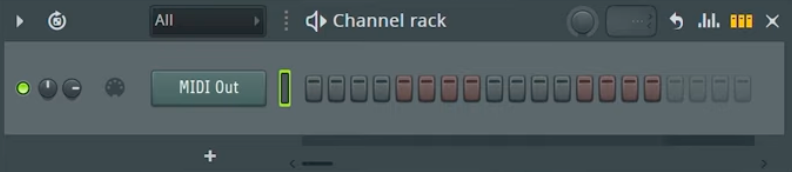
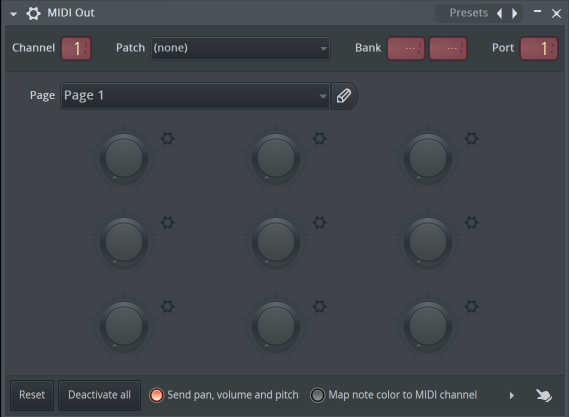
You can now open the piano roll from the midi out plugin to play notes in the DAW and send them to the Poly D.
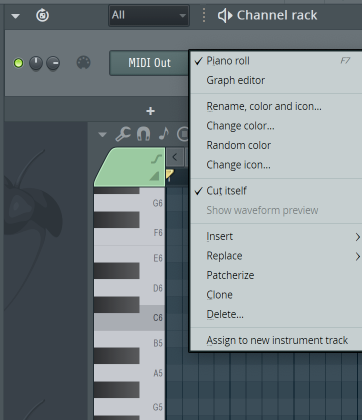
⚠️ Tip: Avoid triggering the MIDI Out plugin with the Poly D when using it as a MIDI keyboard to prevent MIDI feedback loops.
Syncing the Poly D Sequencer to Your DAW
The Poly D sequencer can follow your DAW’s tempo for tight synchronization:
- Open the Behringer Synth Tribe software.
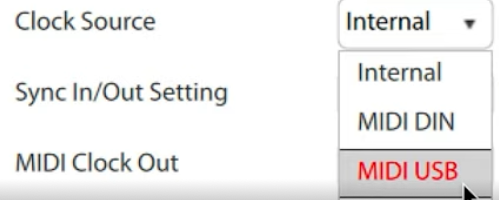
- Set the clock source to MIDI USB.
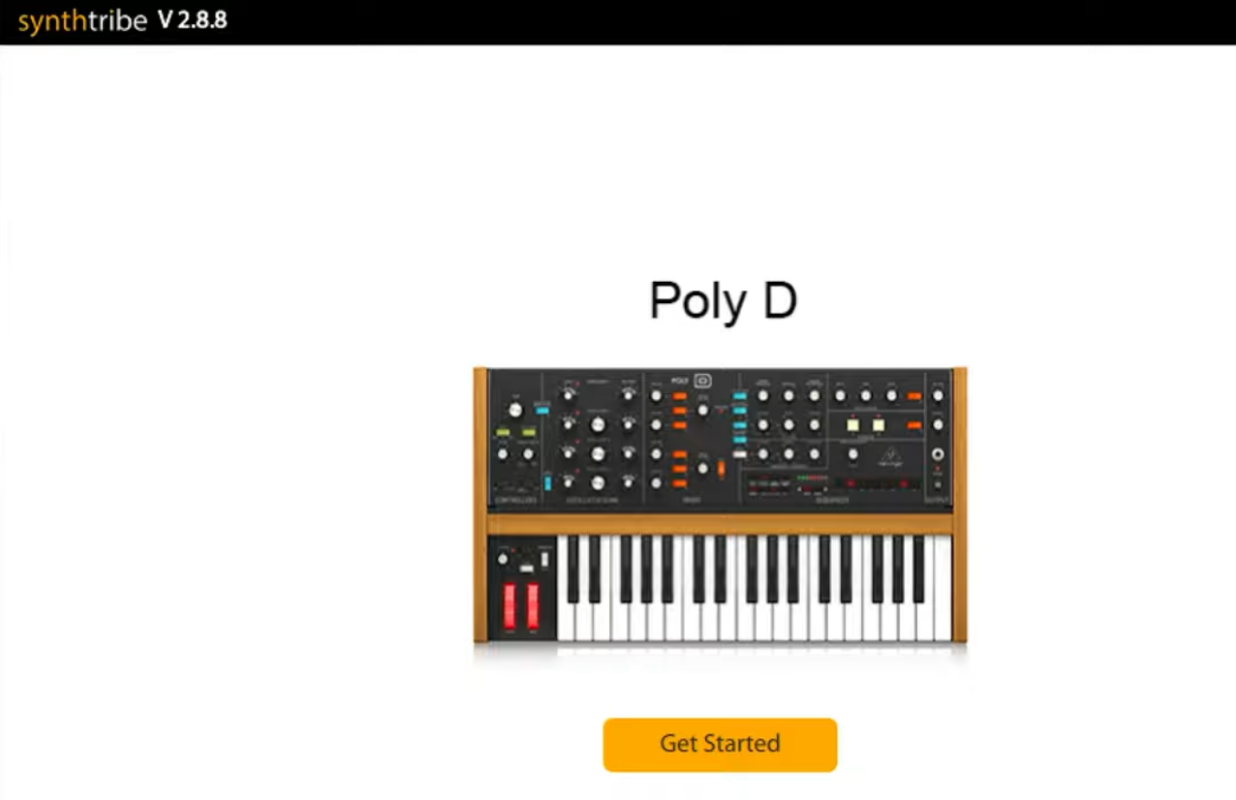
Download here: https://www.behringer.com/downloads.html
Set to MIDI USB to receive BPM from DAW, if you connected with DIN MIDI select it.
Now the sequencer tempo knob will divide the DAW’s tempo, allowing precise control.
- To start the sequencer, either start a pattern on the Poly D or record it in the DAW playlist with the pre-count enabled.
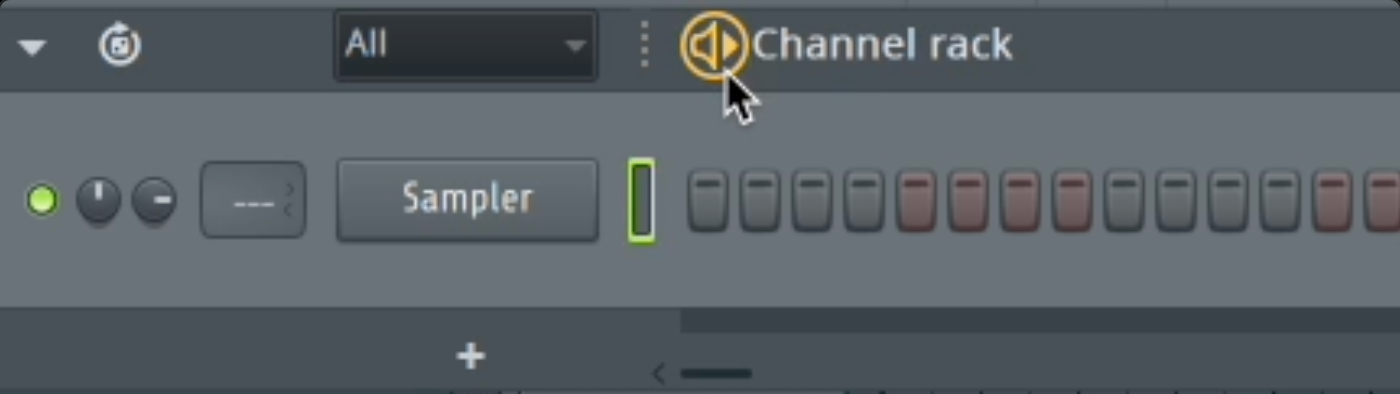
2 ways to start the sequencer of the Poly D from FL Studio.
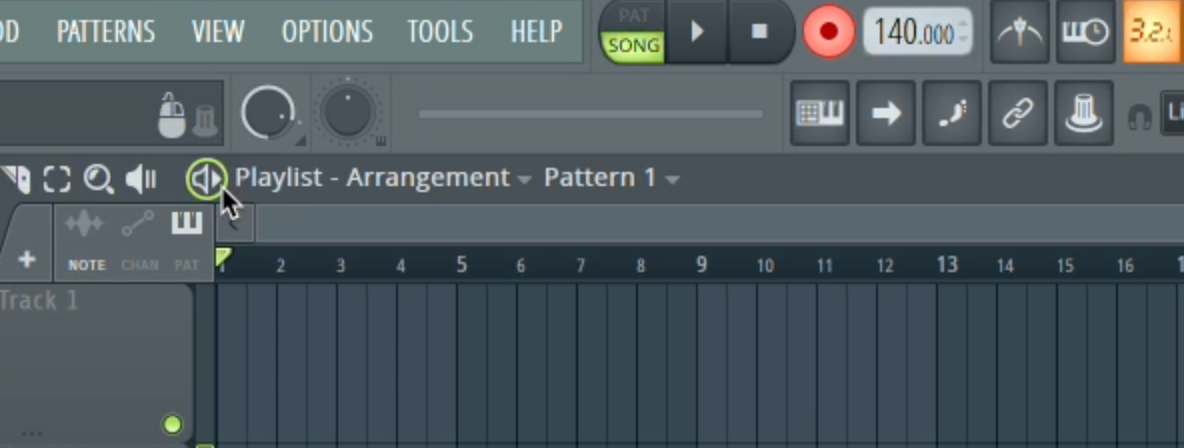
- Note: If the Poly D clock is set to MIDI USB, the sequencer will only start when the DAW project is running. Pressing the sequencer start button manually will have no effect unless the DAW is playing.
Using the Poly D as an External Effect
With a few simple audio routings:
- You can send samples or VST instrument audio from your DAW into the Poly D.
- Process the audio through its analog filters and outputs, then record the processed sound back into your DAW.
This allows you to combine the warm, analog character of the Poly D with modern digital workflows.
- You need an audio interface that offers addition line outputs

2. Connect an the line output of your interface into the external input of the Poly d
3. In your DAW select another empty mixer channel and set the outputs at the bottom of the channel
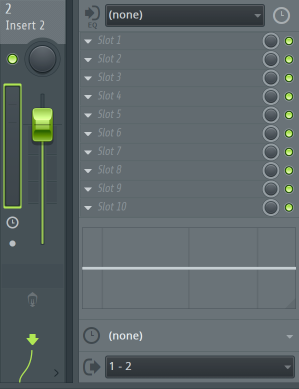
4. Any single you route to this mixer channel will be send into the Poly d. To be able to let signal pass through the Poly D, press a note and the hold button to open the VCA. Make sure all oscillators are turned off if you only want to hear the external audio.
5. The signal is now coming out of the Poly D going trought the first mixer channel where we can recored the signal.
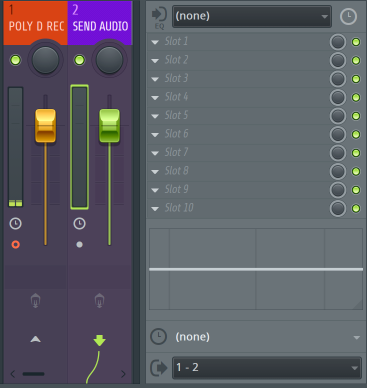
The red channel record the audio from the Poly D and the blue channel sends audio to the Poly D.
We don’t need to select inputs at the top of channel blue, we only use the outputs to send signal in the Poly D..
Integrating the Behringer Poly D with your DAW unlocks endless creative possibilities. From sequencing and MIDI control to analog processing, this workflow ensures you get the best of both worlds: analog warmth with digital flexibility.
Watch the Full Behringer Poly D Masterclass: https://synthskool.com/courses/behringer-poly-d-course/
Behringer Poly D Studio Setup with Audio, Midi and External Audio Send Routing: